![evive_logo_2col_pos_RGB.png]](https://support.evivebrands.com/hs-fs/hubfs/evive_logo_2col_pos_RGB.png?height=40&name=evive_logo_2col_pos_RGB.png)
-
Overview
- When and why you need to manually migrate a Google Site
- What happens to the original site link
-
Prerequisites
- Access to the old PH account
- Access to the new account
- Permissions required (Editor access)
-
Step 1: Open the Google Site from Your Old Account
- Sign in to the old PH account
- Locate and open the Google Site that needs to be moved
-
Step 2: Share the Site with Your New Account
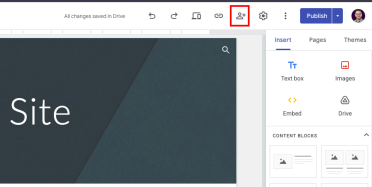
- Open the site’s Share settings
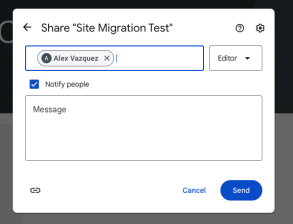
- Add the new account as an Editor
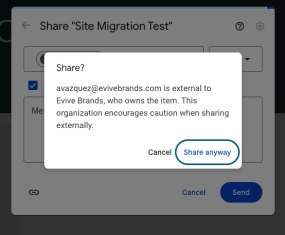
- Confirm that sharing is successful
-
Step 3: Access the Shared Site from Your New Account
- Sign out of the old PH account and sign into the new account
- Open the shared Google Site
-
Step 4: Make a Copy of the Site Under the New Account
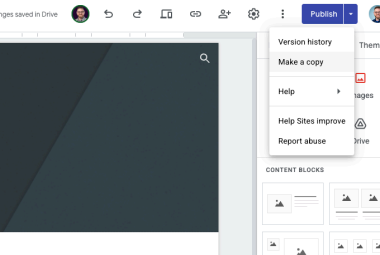
- Click the three vertical dots next to Publish
- Select Make a copy
- Name the copy and confirm it is now owned by the new account/domain
-
Step 5: Publish the Copied Site
- Review and update site content/settings if needed
- Publish the new site
- Confirm the new site URL
-
Step 6: Share the New Link and Update References
- Communicate that the old link will no longer work
- Share the new URL with users/stakeholders
- Update any documents, bookmarks, or web pages that reference the old site link
-
Troubleshooting
- Can’t share the site to the new account
- “Make a copy” option not available
- New site not appearing under the new domain
-
Additional Notes
- Best practices for verifying the new site
- Recommendations for keeping a record of old vs. new URLs