![evive_logo_2col_pos_RGB.png]](https://support.evivebrands.com/hs-fs/hubfs/evive_logo_2col_pos_RGB.png?height=40&name=evive_logo_2col_pos_RGB.png)
Logging into a New Gmail Account
1. Open a web browser (we recommend Google Chrome).
2. Go to gmail.com and enter the Gmail email address provided.
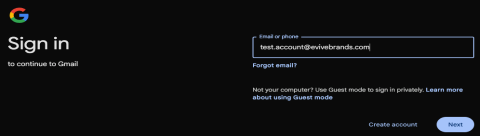
3. Click "Next" and enter the temporary password provided.
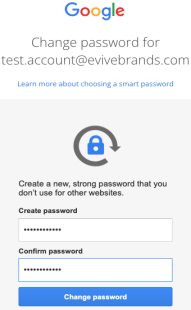
4. Create a new password and click “change password”.
5. Follow any on-screen prompts for initial setup.
Setting up Multi-Factor Authentication (MFA)
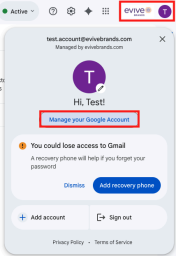
1. After logging in, click on your profile picture or initial in the top right corner. 2. Select "Manage your Google Account".
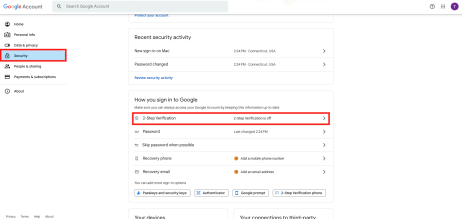
2. In the left navigation menu, click on "Security".
3. Under the "How you sign in to Google" section, find "2-Step Verification" (2SV) and click on it.
4. Click "Turn on 2-Step Verification".
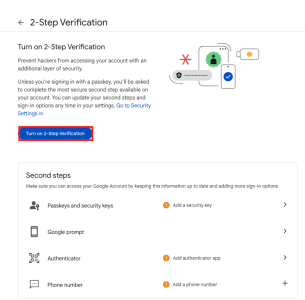
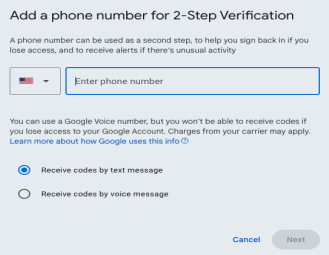
5. Enter your phone number, select “ Receive codes by text message”, click “Next”, and follow the on-screen instructions.
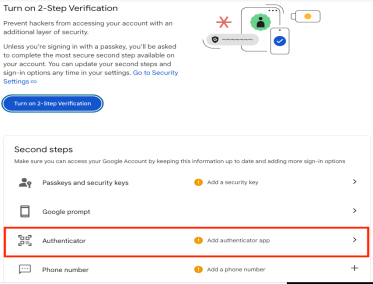
6. Navigate to the previous page and click “Authenticator”
7. Click “Set up authenticator”, scan the QR code with your Authenticator app and enter the code provided to confirm set up.
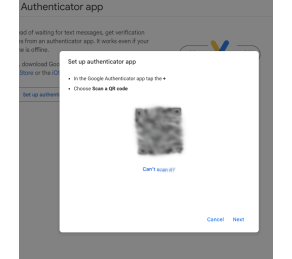
○ For authentication app: Download and install a verified Authentication tool from the mobile app store (we recommend Google Authenticator)