![evive_logo_2col_pos_RGB.png]](https://support.evivebrands.com/hs-fs/hubfs/evive_logo_2col_pos_RGB.png?height=40&name=evive_logo_2col_pos_RGB.png)
You will receive a few popups on your mac device. Please use the steps below to accept and approve the software.
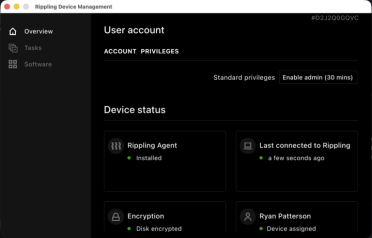
Step 1: Open the Rippling App on your device and select “Enable admin (30 mins)”
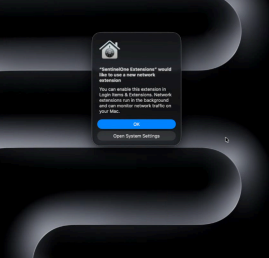
Step 2: Select “OK” on the SentinelOne pop up.
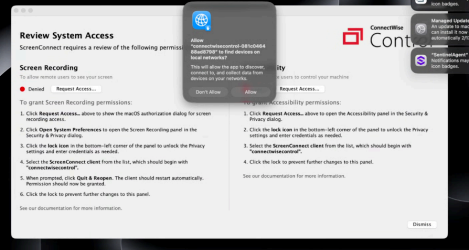
Step 3: Select Allow on the Screen Connect popup
Step 4 (Complete 2 times): Click “Request Access” and then Open System Settings
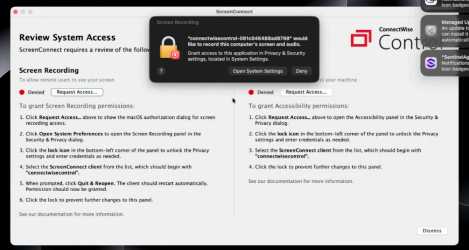
Step 5 (Complete 2 times): Enable the screen connect options that are disabled. Enter your
password to approve.
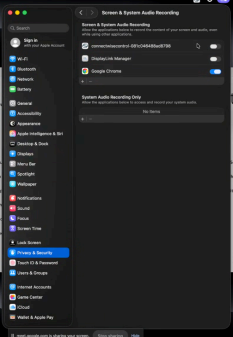
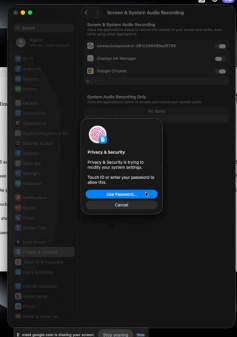
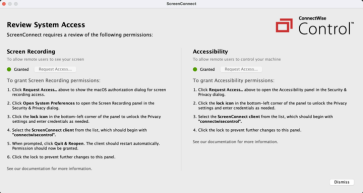
Step 6: Your ScreenConnect app should have (2) green “Granted” actions on the screen. Once
you see this, you are done with the setup.
If you have any questions please email support@evivebrands.com